Python Development Using GitHub Codespaces
Example Code
Examples from this module can be found on GitHub
In this module, you will write you first Python code in GitHub Codespaces, and learn how to use Jupyter Notebook for interactive development.
Tokenization
Section titled “Tokenization”Later in the workshop, you will be using and writing code against large language models or LLMs. If you’ve used ChatGPT or Claude, you know how this work. The chatbot receives a prompt, and it generates a natural language response. As you might have imagined, there is a lot going on behind the scenes. An LLM such as GPT-5 or Opus 4.6 doesn’t understand words. It’s a computer application and computers like numbers. The way that LLMs use numbers to understand text is called tokenization. Each word in the prompt and response can be represented by one or more numbers called tokens. Later on, you’ll start to develop applications using LLMs and learn a lot more about tokens.
There is a Python package that implements some of the algorithms used by OpenAI to convert text to and from tokens. The package is named tiktoken and as a first exercise in using GitHub Codespaces and Jupyter Notebook, we will explore the tokenization process in action.
Again tiktoken is distributed as a Python package. To use it in your code, it must be installed. Press the keyboard shortcut **Ctrl - ** in your GitHub Codespace to open the Terminal pane at the bottom of the window. At the command prompt, use pip` to install the package.
$ pip install tiktokenOpen the Explorer pane with the keyboard shortcut Ctrl - Shift - E (or Command - Shift - E on macOS). In the folder 02-python-development, create a new file called tokens.py.
In tokens.py import the tiktoken module.
import tiktokenNext add some text to convert to tokens. Create a variable named text. In triple quotes, copy the string in 02-python-development/about_gen_ai.txt.
text = """
"""
The tiktoken module implements several tokenization algorithms. The get_encoding function returns an implementation of a specific tokenization algorithm. The cl100k_base algorithm is used by modern LLMs including OpenAI GPT-4.
encoding = tiktoken.get_encoding("cl100k_base")Use the encode method of the encoding to convert the text to a list of tokens.
tokens = encoding.encode(text)And print the list of tokens.
print(tokens)Run the tokens.py file by clicking the Run button in the upper right corner of the editor pane.
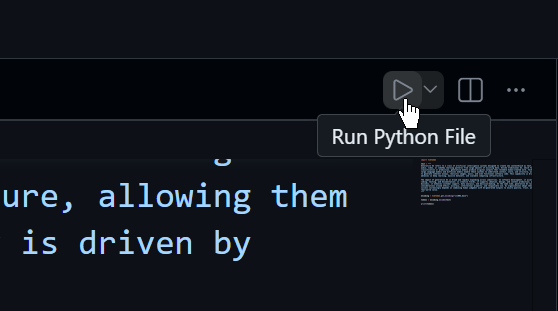
A new tab will open in the Terminal pane at the bottom of the screen. You will see a list of numbers. These are the tokens generated from the text.

You can also invoke the Python interpreter in the Terminal pane. Change the directory to 02-python-development and start the Python interpreter.
$ cd 02-python-development$ python tokens.pyYou’ll see the same list of tokens.
Jupyter Notebook
Section titled “Jupyter Notebook”GitHub Codespaces is a fantastic tool for writing Python code because it uses the Visual Studio Code interface. But a text editor is just one of the tools that AI engineers use. Another popular tool is called Jupyter notebook. A Jupyter notebook is a special interface to interact with the Python interpreter. A notebook is a series of cells that contain either Python code or Markdown. Each cell can be run independently of the others. A cell with Python code will output the results of executing the code. A cell with Markdown will render it in the cell.
Recall you installed the Jupyter extension in the previous section. This extension adds the ability to create and use Jupyter notebooks from within Visual Studio Code. Let’s take a look at how to use a Jupyter notebook by continuing to explore the tiktoken package.
The Jupyter notebook support in Visual Studio Code requires the ipykernel package be install. Use pip to install it in the Terminal pane.
$ pip install ipykernelPress Ctrl - Shift - P (or **Command - Shift - P on macOS) to open the Command Palette at the top of the screen. Search for jupyter and select the command Create: New Jupyter Notebook.
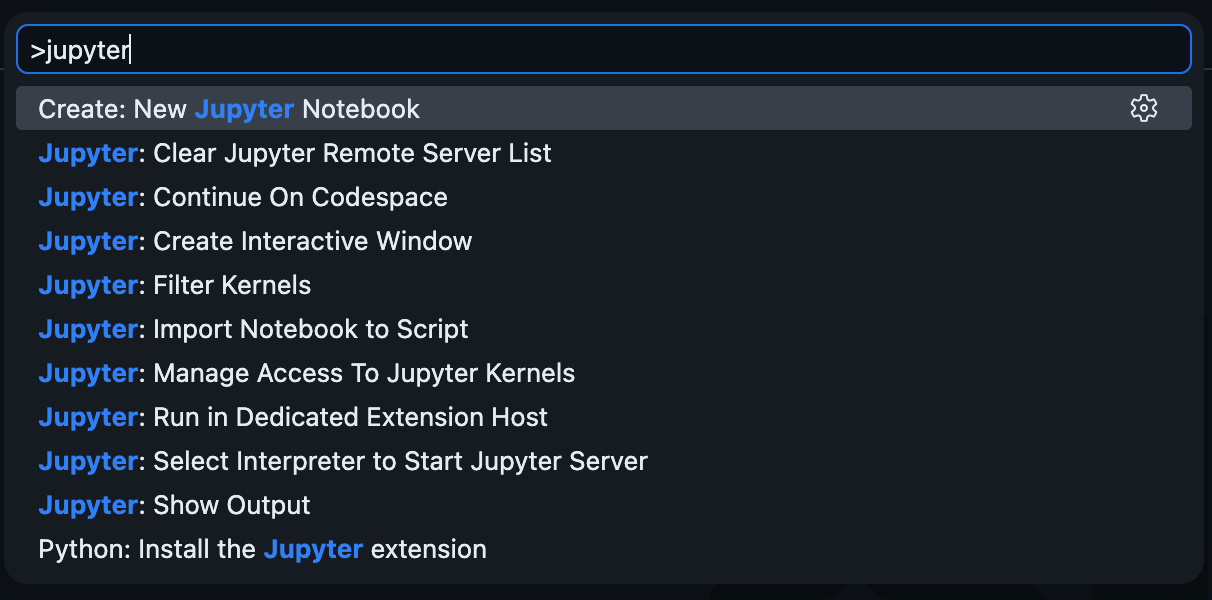
This will create a new Jupyter notebook with a cell in it.

Save the notebook as tokens.ipynb. Now click the Select Kernel button in the upper right corner of the notebook. This will bring up the Command Palette again. Select Python Environments. In the Command Palette select a Python environment with the ipykernel installed. The current environment will be marked with a star.
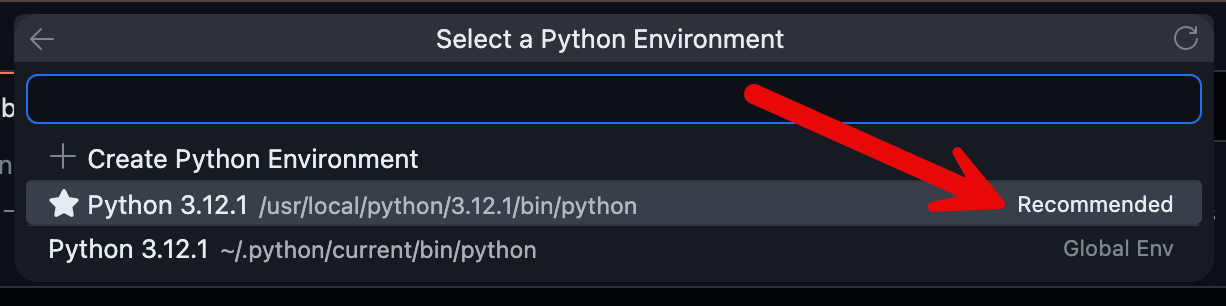
If you don’t see an environment with a star, for this course, select the one in /usr/local.
In the cell add an import to the os module from the Python standard library.
import osPress Shift - Enter to run the cell and add a new cell below it. There is no output from the first cell because the import statement does not return a value. In the new cell call the listdir function to get the contents of the current directory.
os.listdir(".")Notice that you still get syntax highlighting and code completion with Jupyter notebook. Again, press Shift - Enter to run the cell. This time the output is the listing of the current directory.
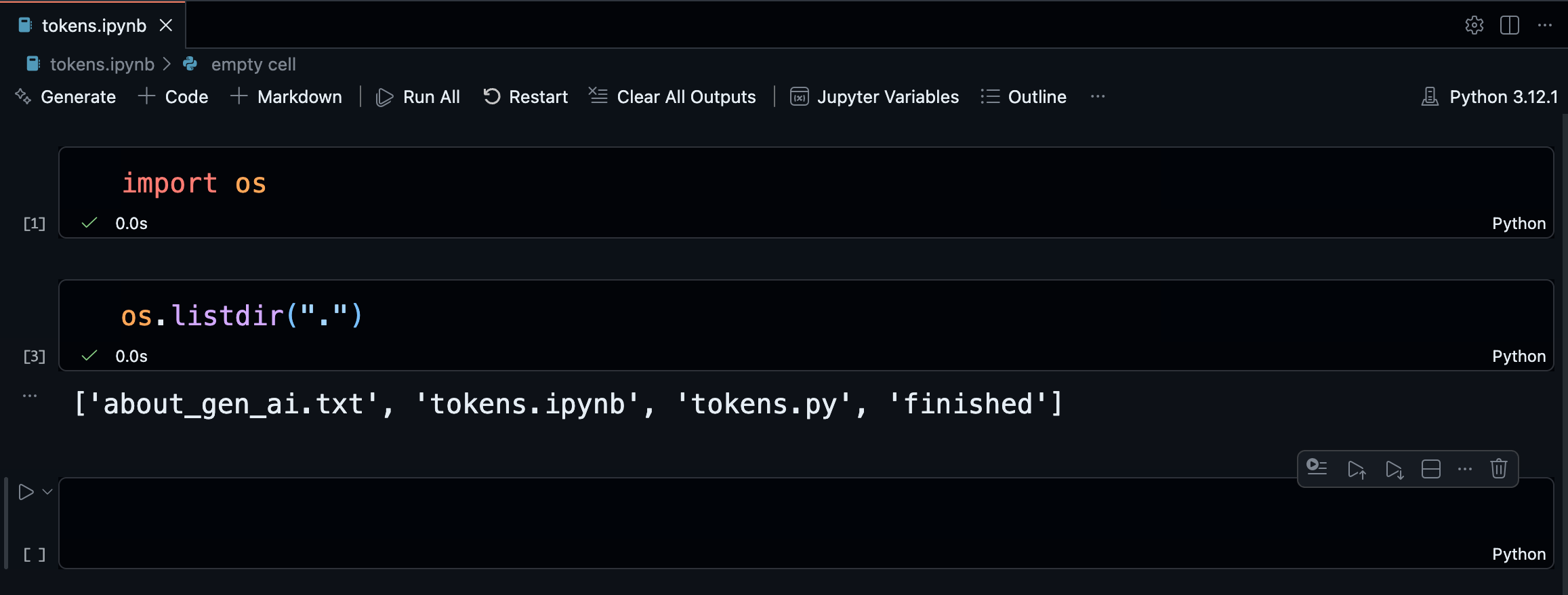
In the next cell, copy the contents of tokens.py and paste it in the cell. Run the cell with Shift - Enter. Notice the output of the cell is the list of tokens that was displayed in the Terminal pane when you executed tokens.py with the Python interpreter.
You can also reverse the encoding process and convert a list of tokens back into text. Use the decode method to get the text for the tokens. Run the following code in the new cell with Shift - Enter.
decoded_text = encoding.decode(tokens)print(decoded_text)As a sanity check, let’s make sure the original text matches the decoded_text.
if decoded_text == text: print("Original and decoded text are the same")else: print("Something went wrong")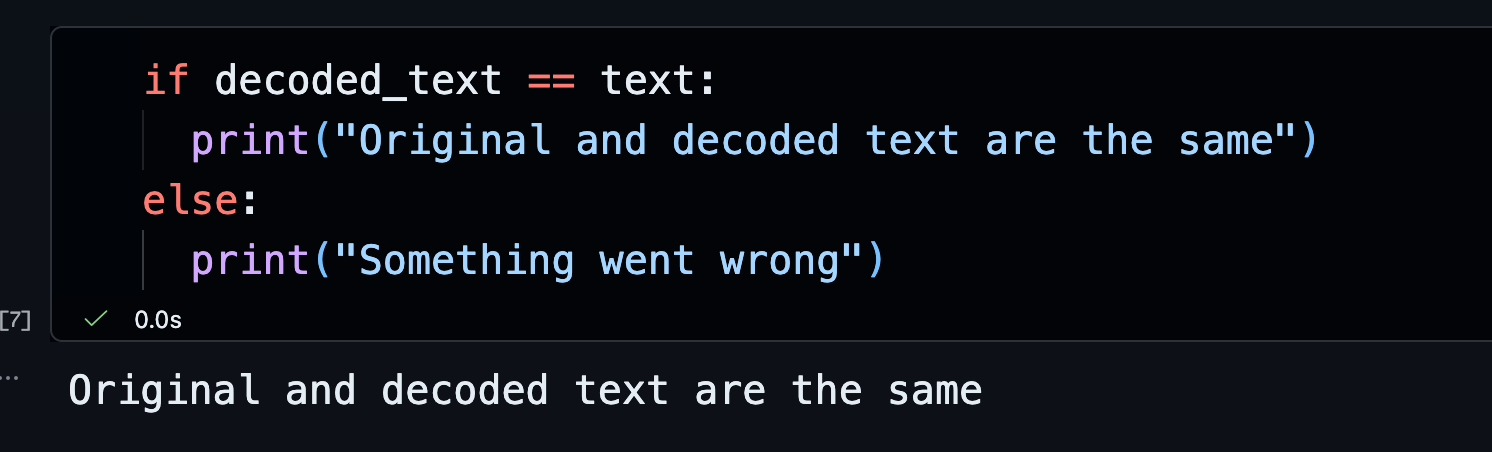
Each token represents all or part of a word. On average, a token represents about 3/4 of a word. Thus the ratio of words to tokens is about 0.75. Divide the number of words in text by the number of tokens in tokens to verify this.
num_words = len(text.split())num_tokens = len(tokens)print(f"Ratio of words to tokens: {num_words / num_tokens:.2f}")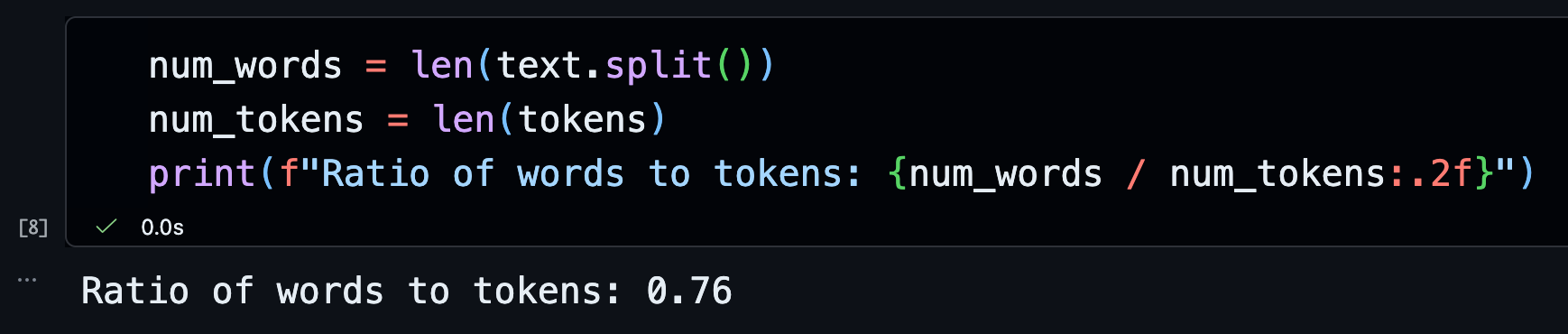
In the next section, you’ll use GitHub Models to start exploring large language models.