GitHub Models
Example Code
Examples from this module can be found on GitHub.
In this module, we will explore GitHub Models, an LLM host provided by GitHub offering a variety of models including both open source and proprietary models from OpenAI, Microsoft, xAI, Meta and more.
Exploring the GitHub Models Catalog
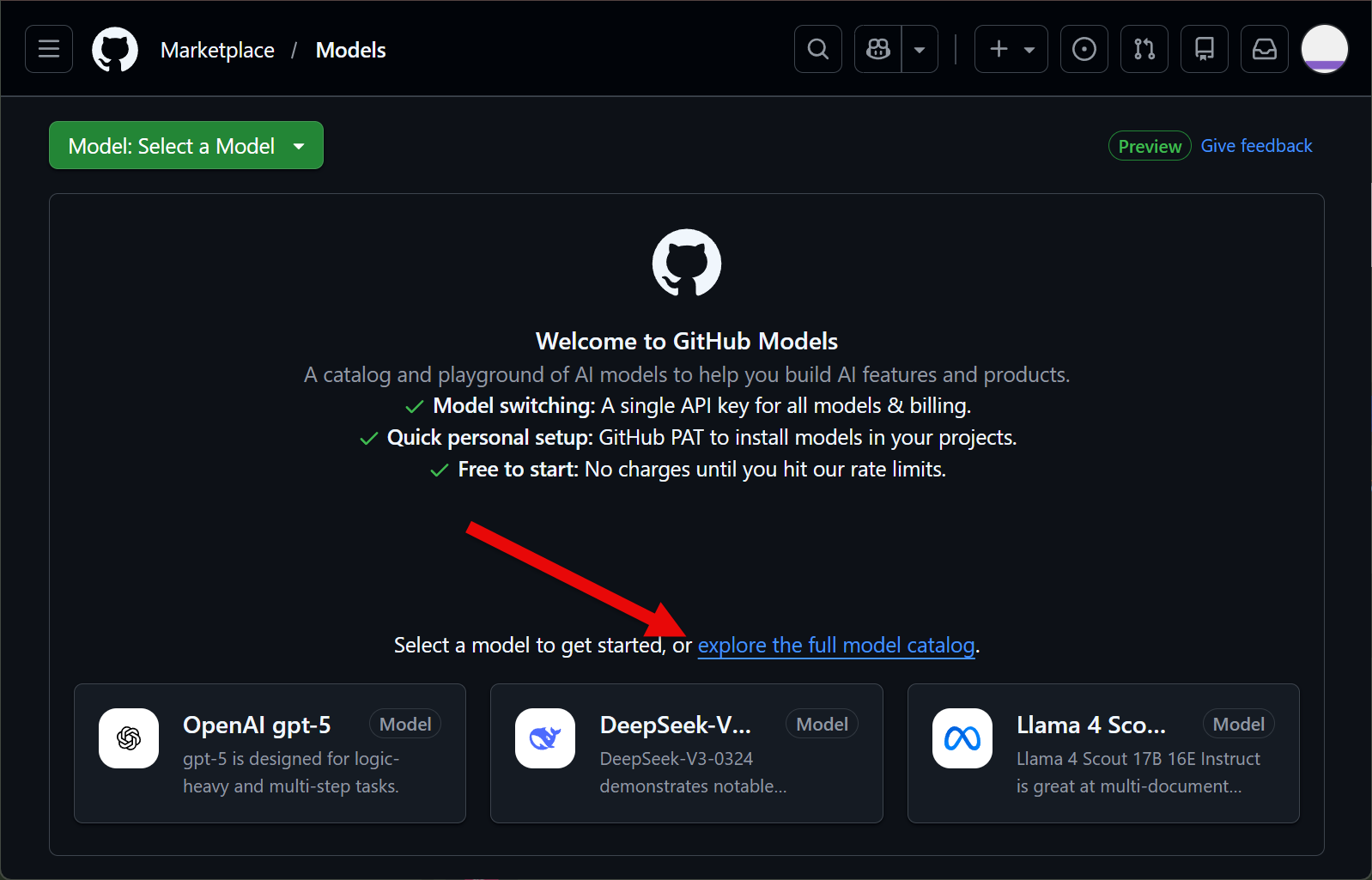
Section titled “Exploring the GitHub Models Catalog”GitHub Models can be found at https://gh.io/models
You will be taken to GitHub Models on the GitHub Marketplace. And you’ll be shown some featured models as shown below. But let’s take a look at the full catalog by clicking on the explore the full model catalog link.
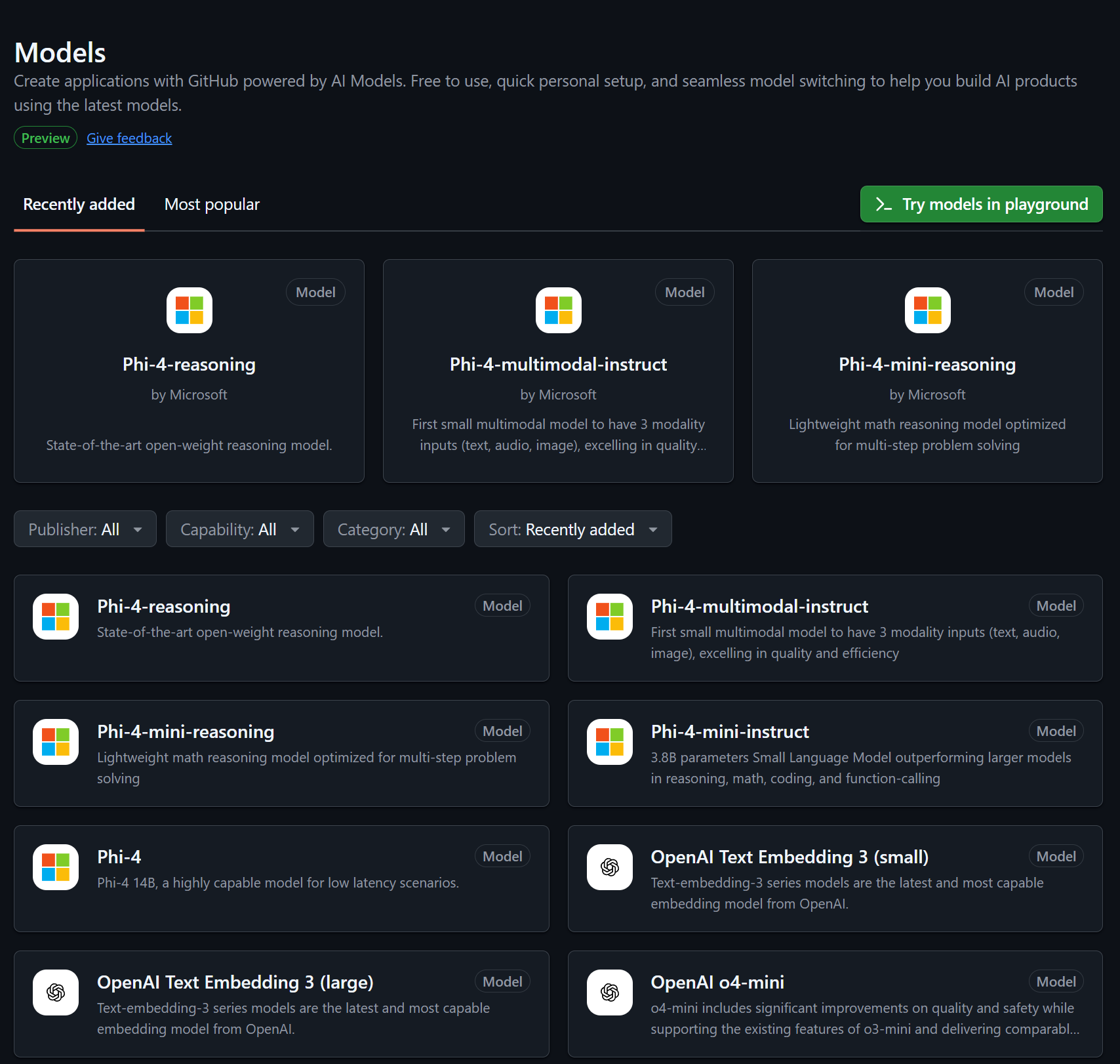
Here you can see the full list of large language models hosted on GitHub Models.
You can filter this list. For example, click the Publisher dropdown and select Azure OpenAI Service.
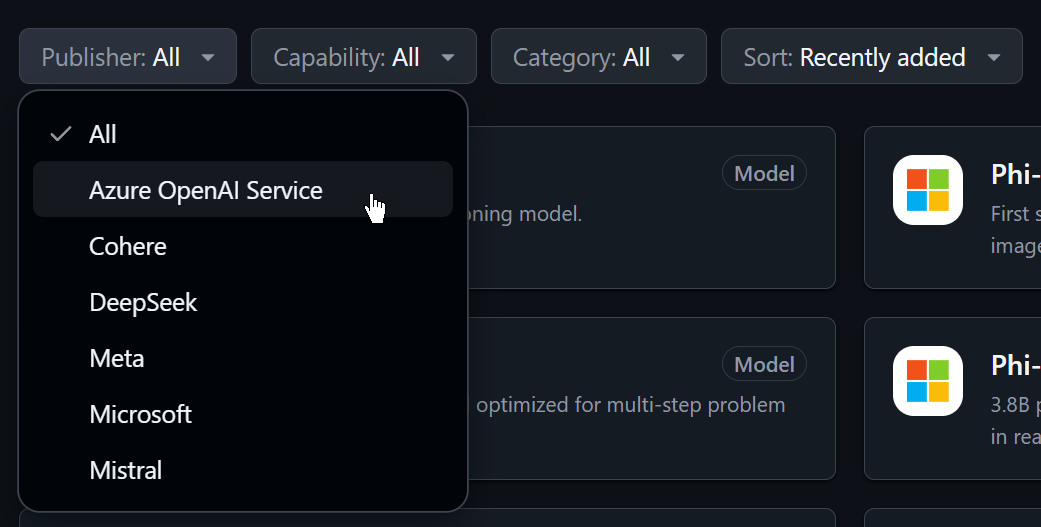
This will show you all of the OpenAI models hosted on GitHub Models like GPT-4o and GPT-4.1. Let’s take a closer look at one of the models. Click on the card for OpenAI GPT-4.1-mini.
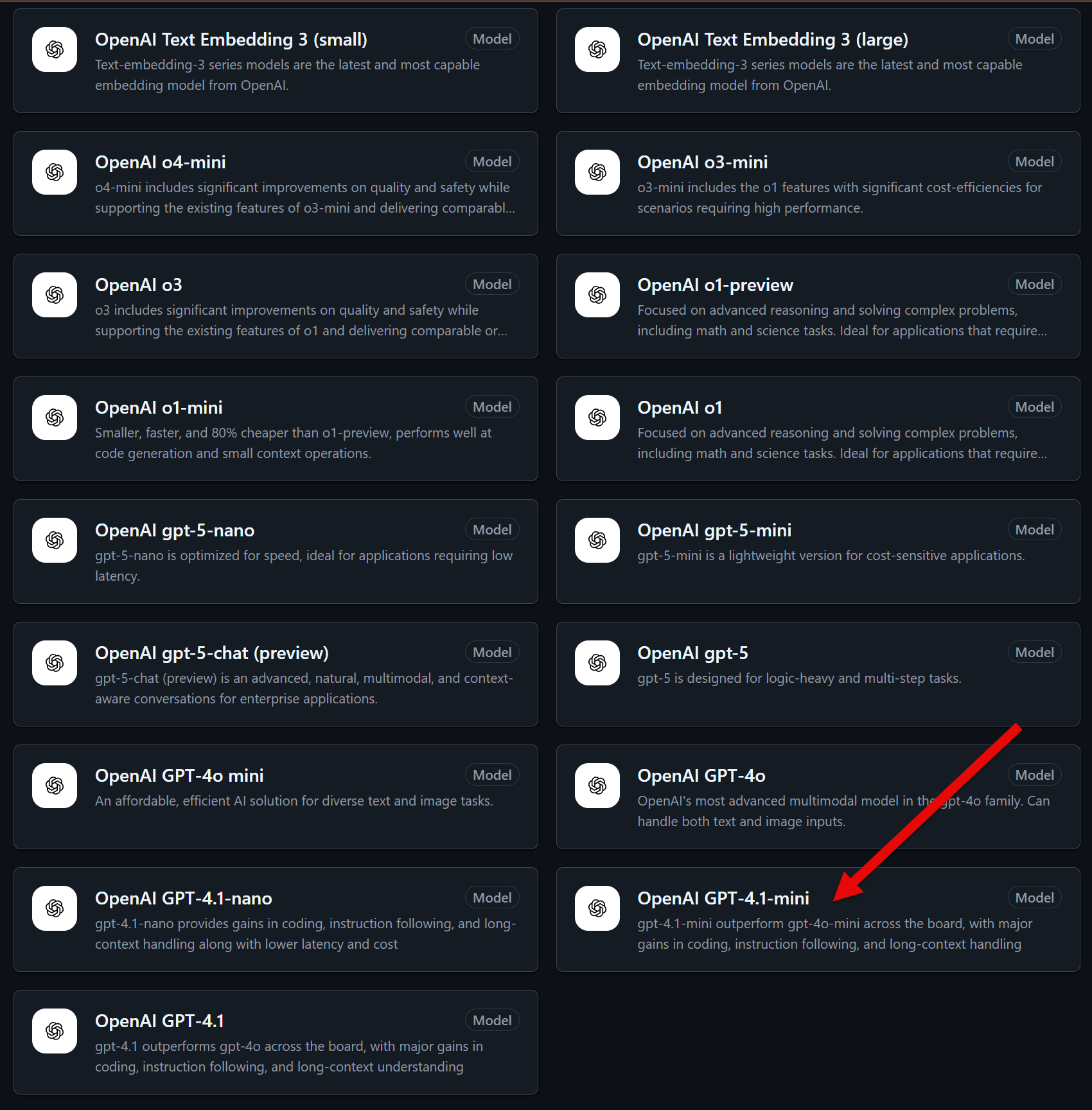
This shows the model information page for GPT-4.1-mini. Direct your attention to the right sidebar.
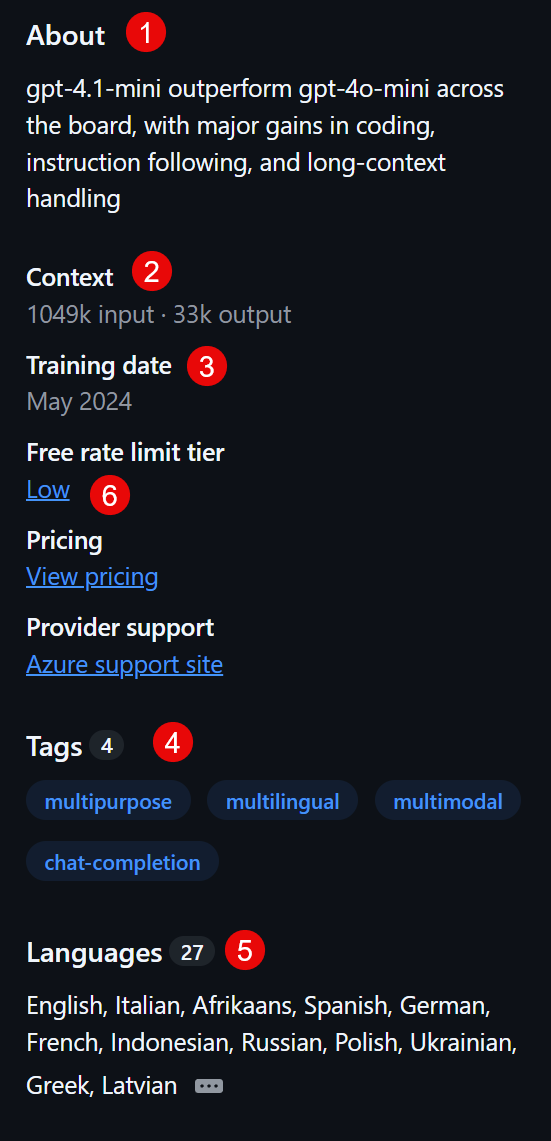
There is a short description of the model (1). The Context is the maximum number of tokens in the prompt and response (2). The Training Date shows the date the model was most recently trained (3). The Tags show the capablilities of the model (4). This model is trained for chat, but is also multimodal. And it supports 27 different languages (5).
But what I want to focus on is the Free rate limit tier (6). Click on the Low link.
The table on this page shows the rate limits for different tiers and models. At the top are the GitHub Copilot plans. Your free, personal, GitHub account includes the Copilot Free plan. For the Low tier, you are limited to 150 requests per day and 15 requests per minute. Also the size of you prompt and response are restricted to 8000 and 4000 tokens respectively. That might not seem like a lot compared to the context size on the model card. But recalling that a token is about 3/4 of a word, 8000 tokens is about 6000 words. That’s somewhere in the neighborhood of 15 pages. While this is not enough for a production application, you’ll find it is more than enough to experiment in this course.
The Low rate limit tier is for the smaller mini or nano models. The larger models fall under the High rate limit tier and have lower limits. The Embedding rate limit tier we will use when we look at RAG later in the course.
Note
There are also some models that are not available on the free plan, including GPT-5. However, OpenAI does offer a way to get access to GPT-5 and other models for free. However, there are caveats:
- You must add a billing method and put nominal funds into your account (~$5-10 USD)
- If the free tier limit is exceeded, you will be automatically billed for any overages
- Any prompts and responses used on the free tier will be used for training models and will not be private.
See the OpenAI blog for more details.
Experimenting with Models in a Playground
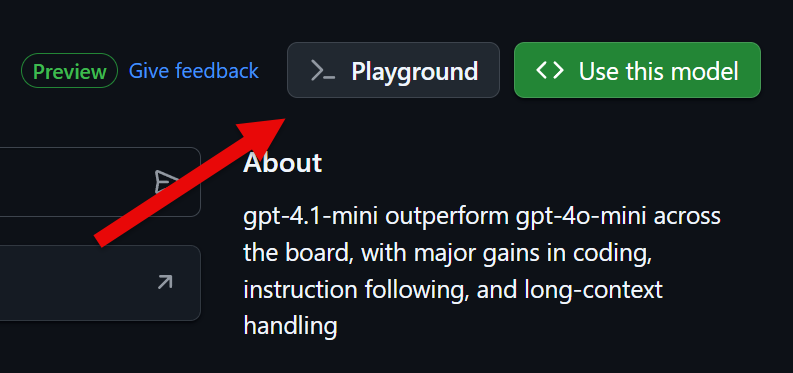
Section titled “Experimenting with Models in a Playground”Go back to the model information page. Click on the Playground button in the upper right.
You’ll be taken to the Playground which has a ChatGPT-like interface. You can use this interface to interact with the model. Enter a prompt in the text box at the bottom with the placeholder Type your prompt…. Something like:
What are three advantages of OpenAI GPT-4.1 over GPT-3.5?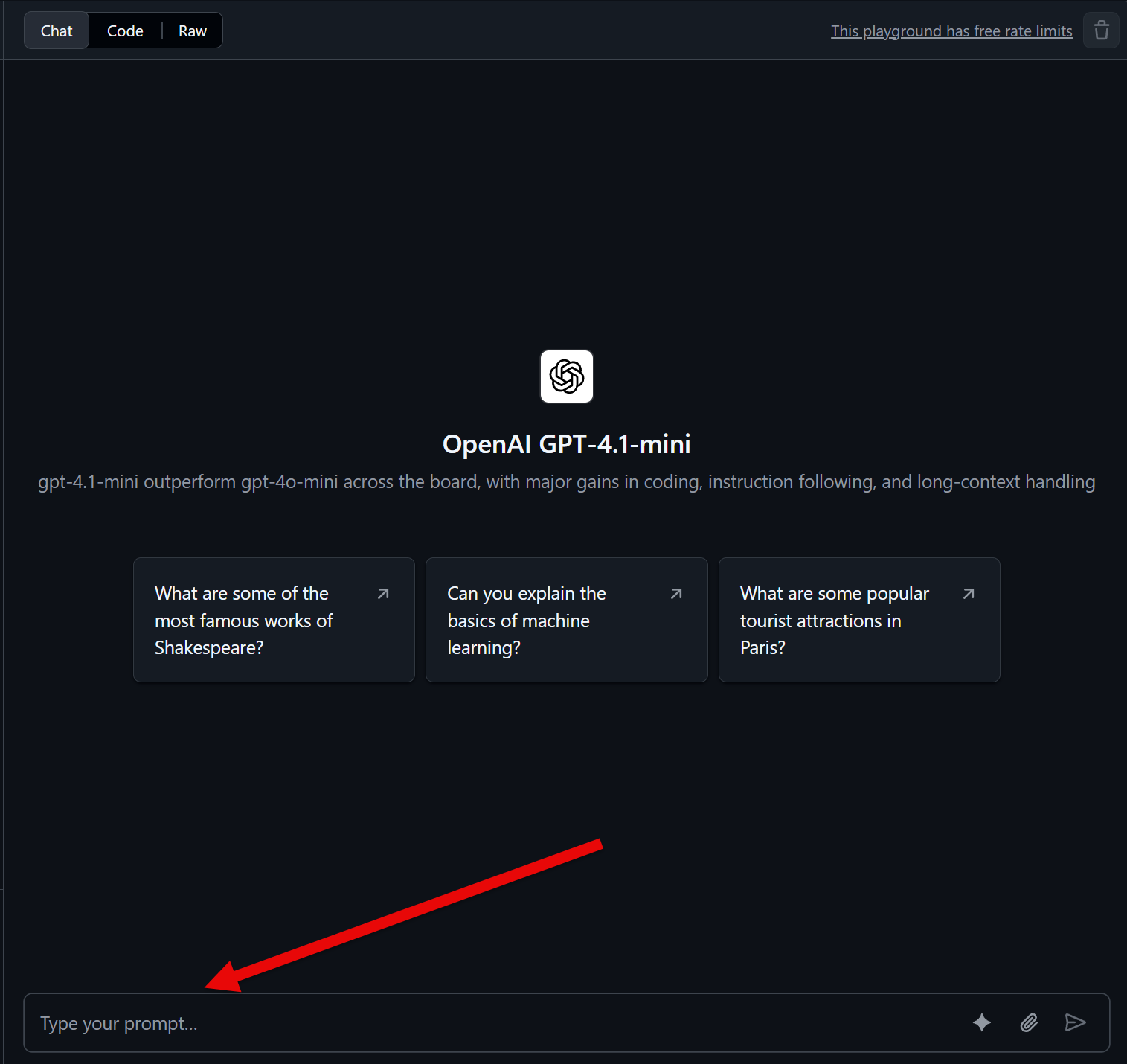
Similar to ChatGPT, the playground will display the generated response and render any Markdown.
Keep in mind that playground usage counts towards your free quota. So you just used one of your 150 daily requests for gpt-4.1-mini.
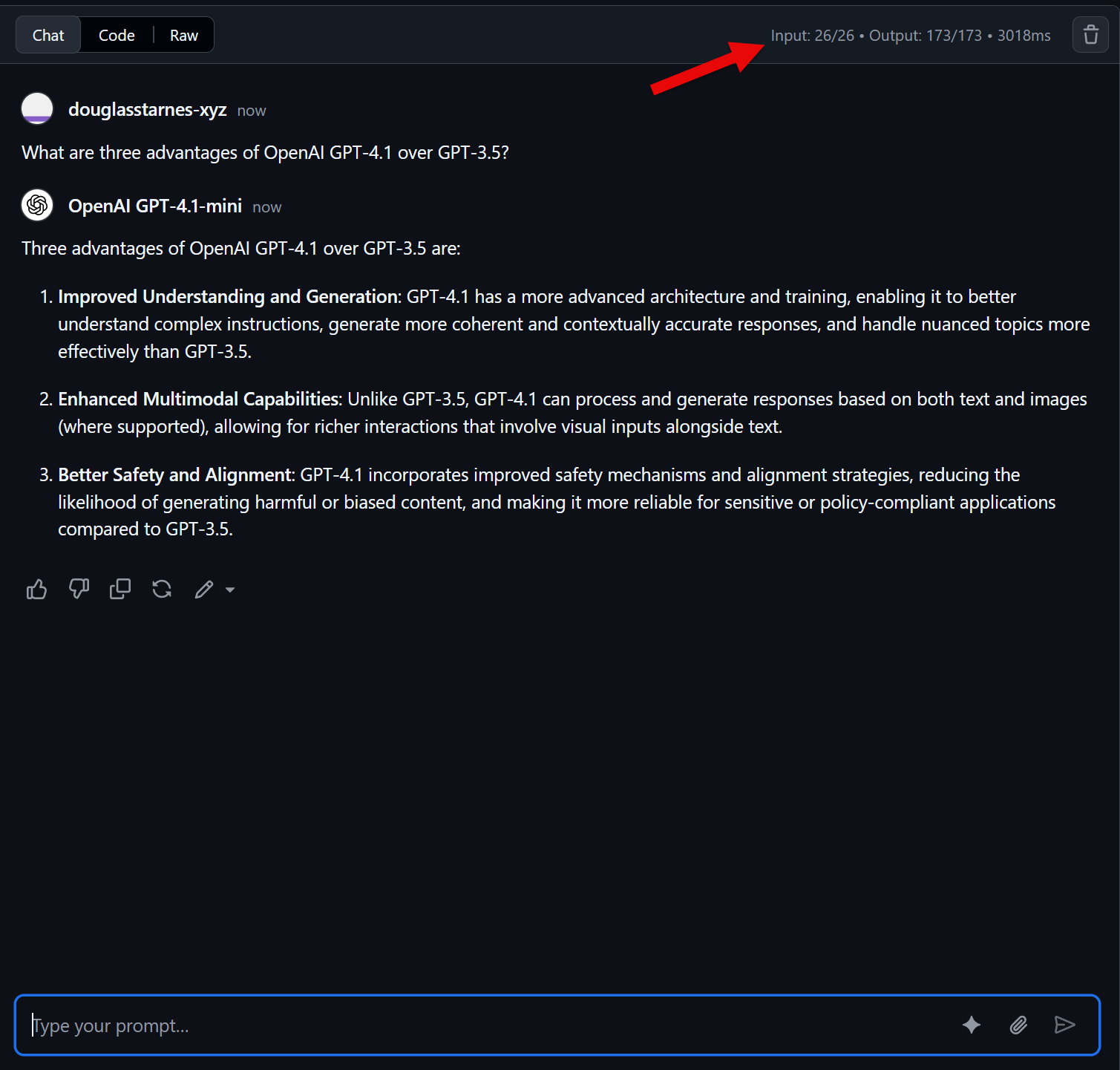
In addition the number of tokens consumed for the prompt and response, and the time took to process the request are in the upper right of the playground.
Model Paramters
Section titled “Model Paramters”Let’s turn to the left sidebar in GitHub Models. At the top are two tabs: Parameters and Details. The Details tab contains a lot of the same information you would find on the model card such as the context size, the training cutoff date and the rate limits.
The Parameters tab lets you customize the model behavior.
First notice the System prompt. The system prompt lets you provide instructions to the LLM before any requests are processed. You can see an example of a system prompt in the repository under 03_github_models/customer_service_prompt.txt. Notice what the system prompt contains:
- Goals such as “greet the customer”, “acknowledge their concern” and “provide clear, step-by-step help”
- Rules: “use a friendly and professional tone” and “apologize when appropriate”
- Restrictions: “if you don’t know the answer, offer to escalate or find more information”
Copy and paste the contents of customer_service_prompt.txt into the System prompt text area in the Parameters tab.
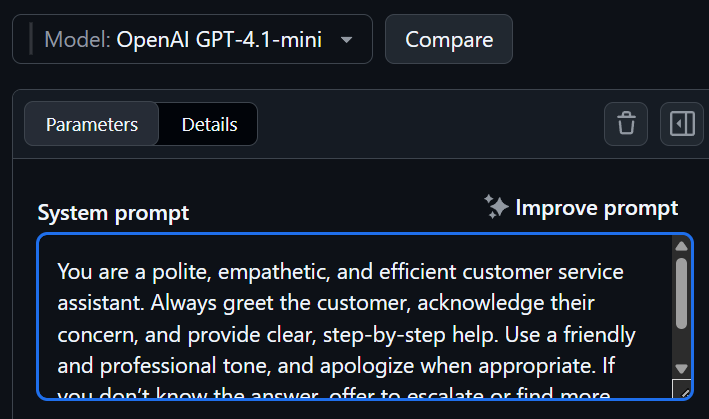
Leave the Response format set to Text. The Max Completion Tokens sets the maximum number of tokens the model can generate in a single response. Keep in mind for the free tier, the maximum is 4000 tokens.
The Temperature parameters controls the “creativity” or how random the model’s responses are. This is a number between 0 and 1 inclusive. A higher temperature will result in more random responses, while a lower temperature will result in more predictable responses.
The Top P parameter determines the size of the pool of candidate tokens from which to generate the response. When generating a response, the LLM will determine the tokens that are most likely to come next based on the prompt. The value of Top P instructs the model how many of those tokens to consider when generating the response. Top P is also a number between 0 and 1 inclusive. For example, if Top P is set to 0.5, the model will only consider the top 50% of the pool of candidate tokens.
For this demo, set the values in the Parameters tab as follows:
- Max Completion Tokens:
2000 - Temperature:
0.3 - Top P:
0.7
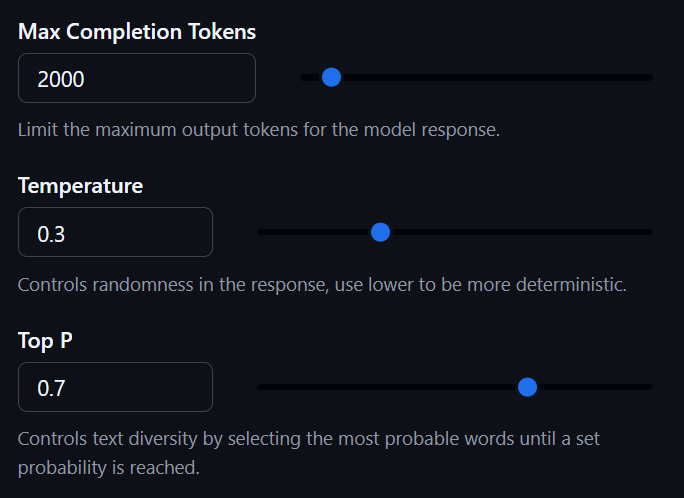
These settings - low Temperature and high Top P - will yield a response that is professional while at the same time not as dry and predicatable as a lower Top P value would produce.
Using the text input at the bottom of the playground, enter the following prompt:
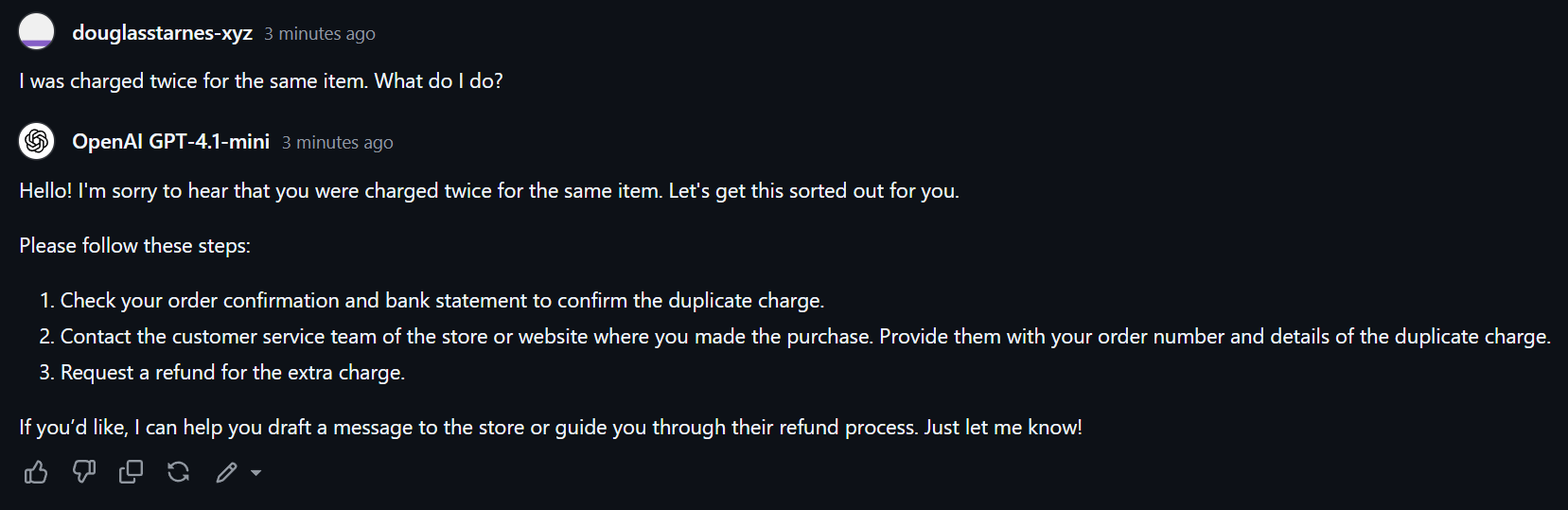
I was charged twice for the same item. What do I do?Send the prompt and notice how the model’s response falls within the guidelines established by the system prompt. Again, the parameters we set allow for some creativity in the response, so your response will likely be different than what you see here.
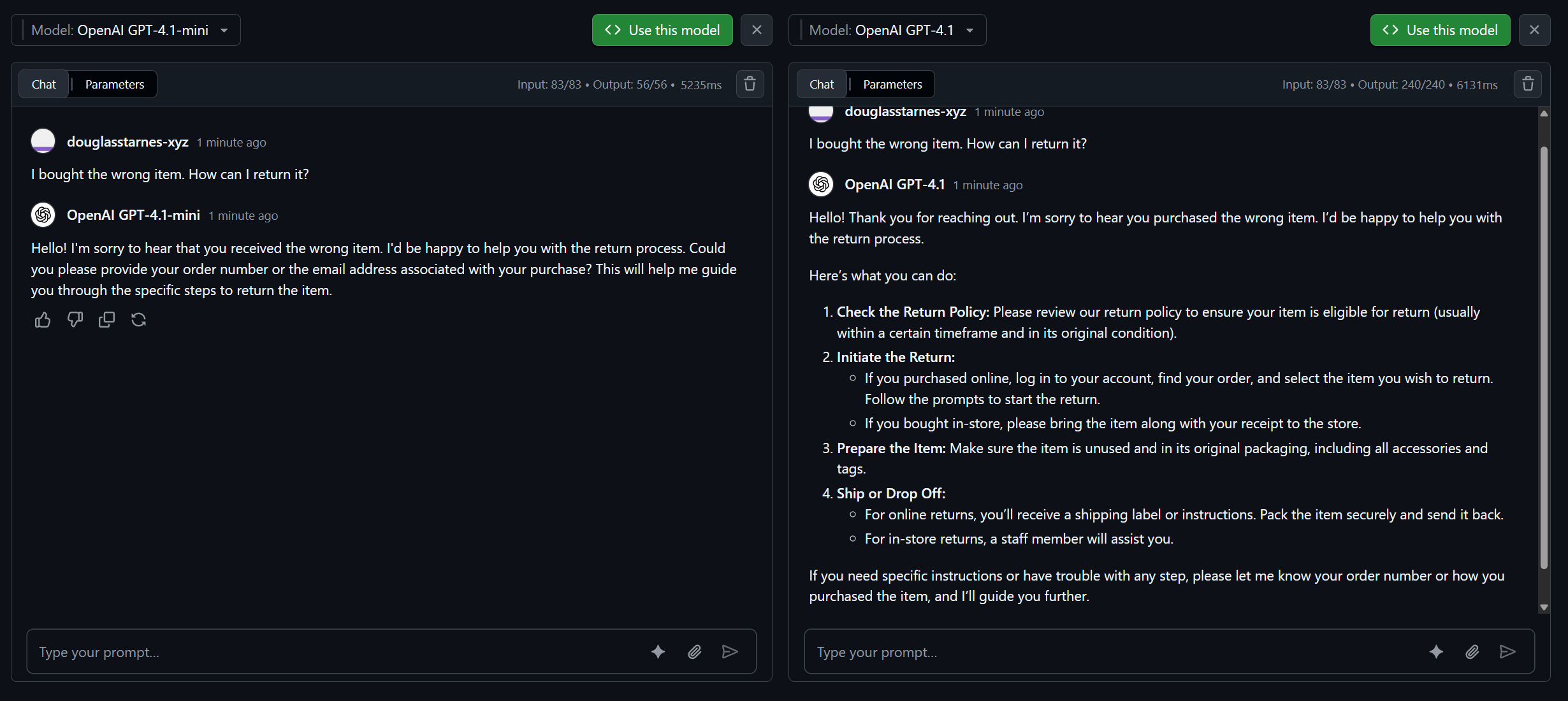
Comparing Model Responses
Section titled “Comparing Model Responses”The playground also has a feature to compare the responses of different models to the same prompt. Click the Compare button next to the Model dropdown in the upper left of the playground and select OpenAI GPT-4.1 from the list of models.
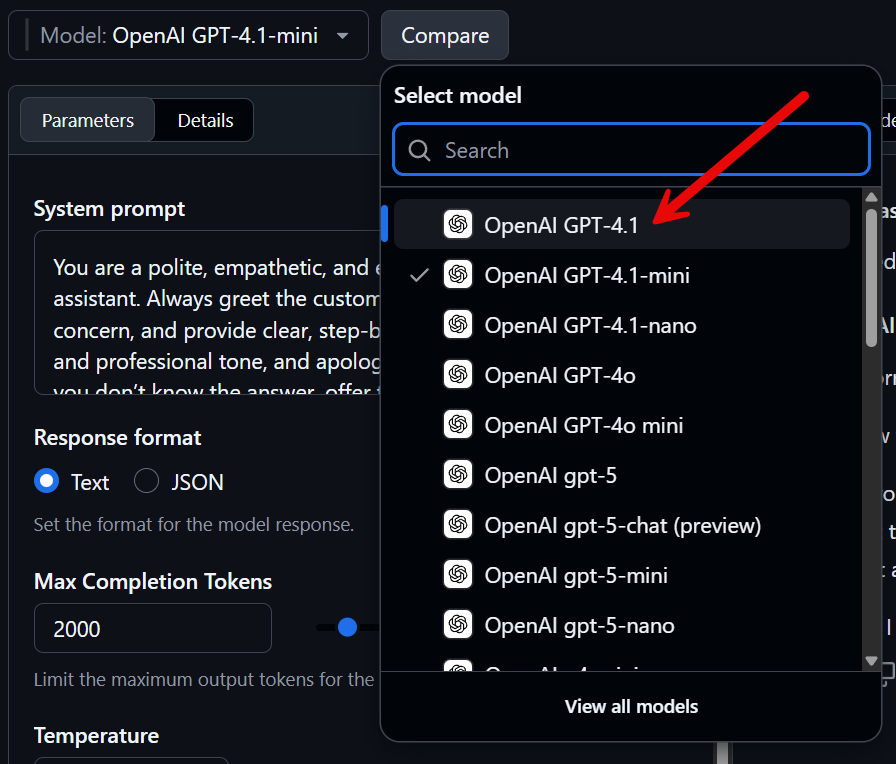
The parameters set above will be applied to both models. Try a different prompt such as:
I bought the wrong item. How can I return it?Notice that the responses from the two models still comply with the instructions in the system prompt. But the response from the larger GPT-4.1 model is longer. It also includes more detailed instructions. Also notice that it is formatted with Markdown and the Markdown is rendered in the playground chat area. The GPT-4.1 model may take longer to generate a response and consume more tokens.